MareArts ANPR mobile app

12/31/2025

AWS SAM Troubleshooting - Fixing pip/runtime and AWS CLI Issues


🔧 AWS SAM Troubleshooting - Fixing pip/runtime and AWS CLI Issues

If you're deploying AWS Lambda functions with SAM (Serverless Application Model), you may have encountered frustrating build errors. This guide explains the two most common issues and how to fix them permanently.

Note: This guide uses generic examples (<YOUR_STACK_NAME>) and is safe to share publicly.

🚨 The Two Common Problems

Problem A — sam build fails with pip/runtime error

You may see this error:

Error: PythonPipBuilder:ResolveDependencies - Failed to find a Python runtime containing pip on the PATH.

What this means: SAM is trying to build for a specific Lambda runtime (like python3.11), but your shell has:

  • python from one location (e.g., conda environment)
  • pip from another location (e.g., ~/.local/bin or /usr/bin)

SAM requires a matching pair - the pip must belong to the same Python interpreter that matches your Lambda runtime version.

Problem B — AWS CLI crashes with botocore conflicts

You may see errors like:

KeyError: 'opsworkscm'
ModuleNotFoundError: No module named 'dateutil'

What this means: Your system AWS CLI (/usr/bin/aws) is accidentally importing incompatible botocore or boto3 packages from ~/.local/lib/python..., causing version conflicts.

🔍 Quick Diagnosis (5 Commands)

Run these from your SAM project directory to diagnose the issue:

# 1. What Python runtime does your template.yaml require?
grep "Runtime: python" template.yaml

# 2. What python are you using?
which python
python -V

# 3. What pip are you using?
which pip
pip -V

# 4. Does pip belong to this python?
python -m pip -V

🚩 Red flag: If pip -V and python -m pip -V show different paths or Python versions, your PATH is contaminated.

✅ The Fix: Dedicated Environment + Clean PATH

The solution is to create an isolated environment that matches your Lambda runtime and force clean PATH ordering.

Step 1: Create an environment matching your Lambda runtime

If your template.yaml specifies Runtime: python3.11, create a Python 3.11 environment:

# Using conda (recommended)
conda create -n aws-sam-py311 python=3.11 pip -y
conda activate aws-sam-py311

# Or using venv
python3.11 -m venv ~/.virtualenvs/aws-sam-py311
source ~/.virtualenvs/aws-sam-py311/bin/activate

Step 2: Install SAM CLI and AWS CLI inside the environment

# Upgrade pip first
python -m pip install --upgrade pip

# Install SAM CLI
python -m pip install aws-sam-cli

# Optional: Install AWS CLI v2 (avoids system aws/botocore conflicts)
# Using conda-forge:
conda install -c conda-forge awscli -y

# Or using pip:
python -m pip install awscli

Step 3: Disable user-site imports and fix PATH ordering

This is the critical step that prevents ~/.local contamination:

# Disable user site-packages (~/.local)
export PYTHONNOUSERSITE=1

# Force clean PATH (conda/venv bin first, then system)
export PATH="$CONDA_PREFIX/bin:/usr/bin:/bin"

# Or for venv:
# export PATH="$VIRTUAL_ENV/bin:/usr/bin:/bin"

# Clear shell hash table
hash -r

Step 4: Verify the fix

# All should point to your environment
which python
which pip
which sam
which aws

# Verify versions match
python -V      # Should be 3.11.x
pip -V         # Should show python 3.11
sam --version  # Should work without errors
aws --version  # Should work without errors

Step 5: Build and deploy

sam build --cached --parallel
sam deploy --no-confirm-changeset --stack-name <YOUR_STACK_NAME> --region <YOUR_AWS_REGION>

🐳 Alternative: Container Build (Docker)

If you have Docker installed, you can avoid all Python toolchain issues by building in a container:

sam build --use-container
sam deploy --no-confirm-changeset --stack-name <YOUR_STACK_NAME> --region <YOUR_AWS_REGION>

Pros:

  • ✅ No need to match local Python version
  • ✅ Builds in environment identical to Lambda
  • ✅ Most reproducible approach

Cons:

  • ❌ Slower than native builds
  • ❌ Requires Docker installed and running

⚡ Quick Fix for Broken AWS CLI (Emergency)

If you need to use system AWS CLI right now and it's broken:

# Force it to ignore user-site packages
PYTHONNOUSERSITE=1 /usr/bin/aws --version
PYTHONNOUSERSITE=1 /usr/bin/aws sts get-caller-identity
PYTHONNOUSERSITE=1 /usr/bin/aws s3 ls

But the proper fix is: Install AWS CLI inside your dedicated environment (see Step 2 above).

🤔 Why Lambda is python3.11 but my machine uses python3.12?

This is a common source of confusion. They are different things:

Component What It Is Where It's Defined
Lambda Runtime Python version AWS runs in production template.yamlRuntime: python3.11
Your Local Python Python version for development/training/scripts Your system default or conda environment

Key point: When SAM builds your Lambda functions, it must build dependencies compatible with the Lambda runtime, even if your system default is Python 3.12.

Example from template.yaml:

AnprDeviceLicenseValidateFunction:
  Type: AWS::Serverless::Function
  Properties:
    CodeUri: anpr_device_license_validate/
    Handler: app.lambda_handler
    Runtime: python3.11          # ← Lambda uses 3.11
    Architectures:
      - x86_64

So you have three options:

  1. Match local environment to Lambda (recommended) - Create python3.11 env for SAM work
  2. Use container build - Let Docker handle it with sam build --use-container
  3. Upgrade Lambda runtime - Change template.yaml to python3.12 (requires testing)

📋 Complete Example: Deploy Script

Here's a complete bash script that implements all the fixes:

#!/usr/bin/env bash
set -euo pipefail

# Activate conda environment (matches Lambda runtime)
source ~/anaconda3/etc/profile.d/conda.sh
conda activate aws-sam-py311

# Critical: Clean PATH and disable user-site
export PYTHONNOUSERSITE=1
export PATH="$CONDA_PREFIX/bin:/usr/bin:/bin"
hash -r

echo "Environment ready:"
echo "  Python: $(python -V)"
echo "  SAM: $(sam --version | head -1)"
echo "  AWS: $(aws --version)"

# Build and deploy
sam build --cached --parallel
sam deploy --no-confirm-changeset

🎯 Troubleshooting Checklist

Issue Check Fix
sam build fails which pip vs python -m pip -V Create dedicated env, fix PATH
aws command crashes echo $PYTHONNOUSERSITE Set PYTHONNOUSERSITE=1
Wrong Python version python -V vs Lambda runtime Create env matching Lambda
Multiple pip versions which -a pip Fix PATH ordering
Conda conflicts conda env list Create separate env for SAM

🔒 Security Best Practices

⚠️ When sharing code publicly:

  • Never publish template.yaml with secrets (API keys, tokens, webhook URLs)
  • ✅ Use AWS Secrets Manager or SSM Parameter Store for secrets
  • ✅ Redact from logs:
    • AWS account IDs
    • API Gateway URLs
    • Stack names and ARNs
    • Any access keys/tokens

💡 Pro Tips

1. Create a deployment script

Instead of remembering all these environment variables, create a deploy.sh script:

#!/usr/bin/env bash
set -euo pipefail

# Activate environment
source ~/anaconda3/etc/profile.d/conda.sh
conda activate aws-sam-py311

# Clean environment
export PYTHONNOUSERSITE=1
export PATH="$CONDA_PREFIX/bin:/usr/bin:/bin"
hash -r

# Build and deploy
sam build --cached --parallel
sam deploy --no-confirm-changeset

echo "✅ Deployment complete!"

Make it executable: chmod +x deploy.sh

2. Use SAM build cache for faster builds

# First build (slow)
sam build

# Subsequent builds (much faster!)
sam build --cached --parallel

3. Test locally before deploying

# Invoke function locally
sam local invoke MyFunction --event events/test.json

# Start local API
sam local start-api

4. Skip changeset confirmation in CI/CD

# Manual deployment - shows changes
sam deploy

# CI/CD deployment - no prompts
sam deploy --no-confirm-changeset

📊 Before vs After

❌ Before (Broken)
$ sam build
Error: Failed to find Python runtime containing pip

$ aws --version
KeyError: 'opsworkscm'

$ which pip
/home/user/.local/bin/pip  # Wrong location!

$ pip -V
pip 24.0 (python 3.12)     # Wrong version!
✅ After (Fixed)
$ conda activate aws-sam-py311
$ export PYTHONNOUSERSITE=1
$ export PATH="$CONDA_PREFIX/bin:/usr/bin:/bin"

$ sam build
Build Succeeded ✨

$ aws --version
aws-cli/2.32.26 Python/3.11.14

$ which pip
/home/user/anaconda3/envs/aws-sam-py311/bin/pip  # Correct!

$ pip -V
pip 25.3 (python 3.11)     # Matches Lambda runtime!

🎓 Summary

The root cause of most SAM build failures is PATH contamination - your shell mixes Python versions and pip locations from different sources (~/.local, /usr/bin, conda environments).

The complete fix:

  1. ✅ Create dedicated environment matching Lambda runtime (python3.11)
  2. ✅ Install SAM CLI and AWS CLI inside that environment
  3. ✅ Set PYTHONNOUSERSITE=1 to disable user-site packages
  4. ✅ Fix PATH ordering: export PATH="$CONDA_PREFIX/bin:/usr/bin:/bin"
  5. ✅ Run hash -r to clear shell cache

After this, sam build and aws commands will work reliably! 🚀

🔗 Additional Resources


Tags: AWS, SAM, Lambda, Python, DevOps, Deployment, Troubleshooting, ServerlessFramework, CICD, CloudComputing

12/30/2025

MareArts ANPR V14 Models - Complete Performance Guide & Benchmarks


⚡ MareArts ANPR V14 Models - Performance, Metrics & How to Choose

Choosing the right ANPR model is crucial for your application. Too heavy? Slow performance. Too light? Lower accuracy. In this comprehensive guide, we'll break down all MareArts ANPR V14 models with real benchmarks to help you make the perfect choice.

🎯 Two-Stage Pipeline Architecture

MareArts ANPR uses a two-stage pipeline:

  1. Detector - Finds license plates in images (Where is the plate?)
  2. OCR - Reads text from detected plates (What does it say?)

You can mix and match models from each stage to optimize for your specific needs!

📊 Detector Models - Find License Plates

Model Sizes Explained

Size Parameters Speed Accuracy Best For
pico Smallest Fast Good (96-98%) Mobile, Edge devices
micro Small Very Fast Excellent (97-99%) 🏆 Best overall
small Medium Fastest Excellent (98-99%) High-speed applications
medium Large Fast Excellent (98-99%) Balanced
large Largest Moderate Highest (99%+) Maximum accuracy

Resolution Options

  • 320p models (320×320) - 2× faster, 96-98% detection
  • 640p models (640×640) - Highest accuracy, 98-99% detection

Precision Options

  • FP32 - Fastest on GPU (2× faster than FP16), standard size
  • FP16 - 50% smaller file size, same accuracy, slower inference

Complete Detector Performance Table

Model Name Detection Rate Speed (GPU) Size Recommendation
micro_320p_fp32 97.13% 128 FPS (7.8ms) 83 MB 🏆 Best overall
micro_320p_fp16 97.13% 56 FPS (17.9ms) 42 MB 🏆 Best mobile
small_320p_fp32 98.00% 142 FPS (7.0ms) 114 MB ⚡ Fastest
medium_320p_fp32 98.06% 136 FPS (7.4ms) 153 MB High detection
large_320p_fp32 98.40% 131 FPS (7.6ms) 164 MB Strong performance
pico_320p_fp32 96.02% 129 FPS (7.8ms) 75 MB 📱 Smallest + fast
pico_640p_fp32 98.54% 66 FPS (15.2ms) 75 MB Balanced
small_640p_fp32 99.15% 70 FPS (14.3ms) 114 MB High detection
medium_640p_fp32 99.21% 66 FPS (15.1ms) 153 MB Very high
large_640p_fp32 99.31% 60 FPS (16.7ms) 164 MB 🎯 Highest accuracy

Key Findings:

  • 320p models: 2× faster than 640p (96-98% accuracy)
  • 640p models: Highest accuracy (98-99%) for difficult cases
  • FP16 models: 50% smaller, same accuracy, ~50% slower
  • Recommended: micro_320p_fp32 (best speed/accuracy balance)

📖 OCR Models - Read License Plate Text

Two Key Metrics

  • Exact Match - Entire plate number is 100% correct
  • Character Accuracy - Percentage of individual characters correct

Example: Actual plate: "ABC-1234"

  • OCR reads "ABC-1234" → ✅ Exact Match = Yes, Char Accuracy = 100%
  • OCR reads "ABC-1235" → ❌ Exact Match = No, Char Accuracy = 87.5% (7/8 correct)

Complete OCR Performance by Region

🌍 Universal (univ) - All Regions
Model Exact Match Char Accuracy FPS Size
pico_fp32 97.48% 98.87% 264 20 MB
micro_fp32 97.54% 98.86% 260 71 MB
small_fp32 97.51% 98.85% 291 112 MB
medium_fp32 97.57% 98.89% 245 164 MB
large_fp32 97.75% 98.91% 253 179 MB
🇰🇷 Korean (kr) - Best Overall Accuracy
Model Exact Match Char Accuracy FPS
pico_fp32 98.99% 99.77% 272
micro_fp32 99.21% 99.80% 250
small_fp32 99.19% 99.80% 295
medium_fp32 99.21% 99.80% 267
large_fp32 99.27% 99.82% 265
🇪🇺 Europe+ (eup) - EU + Additional Countries
Model Exact Match Char Accuracy FPS
pico_fp32 94.98% 97.39% 280
micro_fp32 95.07% 97.46% 266
small_fp32 94.98% 97.43% 304
medium_fp32 95.03% 97.46% 278
large_fp32 95.32% 97.54% 260
🇺🇸 North America (na) - USA, Canada, Mexico
Model Exact Match Char Accuracy FPS
pico_fp32 71.21% 88.43% 268
micro_fp32 71.21% 87.67% 269
small_fp32 69.70% 88.27% 311
medium_fp32 63.64% 87.24% 284
large_fp32 69.70% 86.25% 271
🇨🇳 China (cn)
Model Exact Match Char Accuracy FPS
pico_fp32 96.24% 98.82% 268
micro_fp32 96.30% 98.74% 265
small_fp32 96.36% 98.88% 301
medium_fp32 96.36% 98.89% 276
large_fp32 96.49% 98.87% 262

OCR Model Averages (All Regions)

Model Avg Exact Match Avg Char Accuracy Avg FPS Size
small_fp32 91.54% 96.64% 300 FPS 112 MB
pico_fp32 91.78% 96.65% 270 FPS 20 MB
micro_fp32 91.86% 96.50% 262 FPS 71 MB
medium_fp32 90.36% 96.45% 270 FPS 164 MB
large_fp32 91.70% 96.27% 262 FPS 179 MB

🌍 Regional Vocabulary Support

Region Code Coverage Character Sets
Universal univ All regions (default) All character sets
Korea kr South Korea Hangul + Latin + Digits
Europe+ eup EU + UK, Switzerland, Norway Latin + Cyrillic + Special
North America na USA, Canada, Mexico Latin + Digits
China cn China Chinese + Latin + Digits

Pro Tip: Always use specific regions for best accuracy. Only use univ when the region is unknown!

🎯 How to Choose the Right Models

Use Case 1: Parking Management

Requirements: Good accuracy, real-time performance, cost-effective

# Recommended Configuration
detector = ma_anpr_detector_v14(
    "micro_320p_fp32",  # 97% detection, 128 FPS
    user, key, sig,
    backend="cuda",
    conf_thres=0.25
)

ocr = ma_anpr_ocr_v14(
    "small_fp32",       # 95%+ exact match, 300 FPS
    "eup",              # Specific region
    user, key, sig
)

Why: Excellent balance of speed and accuracy. Handles 90%+ of plates easily.

Use Case 2: Security Checkpoint (Critical)

Requirements: Maximum accuracy, can't miss plates

# Recommended Configuration
detector = ma_anpr_detector_v14(
    "large_640p_fp32",  # 99.31% detection (highest!)
    user, key, sig,
    backend="cuda",
    conf_thres=0.20     # Lower threshold for more detections
)

ocr = ma_anpr_ocr_v14(
    "large_fp32",       # 95%+ exact match, best accuracy
    "kr",               # Specific region for your area
    user, key, sig
)

Why: Maximum detection and recognition accuracy. No compromises.

Use Case 3: Traffic Monitoring (High Volume)

Requirements: Maximum speed, process many cameras

# Recommended Configuration
detector = ma_anpr_detector_v14(
    "small_320p_fp32",  # 98% detection, 142 FPS (fastest!)
    user, key, sig,
    backend="cuda",
    conf_thres=0.25
)

ocr = ma_anpr_ocr_v14(
    "small_fp32",       # 300 FPS (fastest OCR!)
    "univ",             # Universal for mixed traffic
    user, key, sig
)

Why: Fastest processing for high-volume applications. Can handle multiple streams.

Use Case 4: Mobile/Edge Device

Requirements: Small size, low power, on-device processing

# Recommended Configuration
detector = ma_anpr_detector_v14(
    "micro_320p_fp16",  # 97% detection, 42 MB (50% smaller!)
    user, key, sig,
    backend="cpu",      # CPU for mobile
    conf_thres=0.25
)

ocr = ma_anpr_ocr_v14(
    "pico_fp32",        # 20 MB, 270 FPS
    "kr",               # Specific region
    user, key, sig
)

Why: Smallest models, excellent for mobile/edge. Total size: 62 MB.

Use Case 5: Law Enforcement (Difficult Conditions)

Requirements: Works in poor lighting, angles, damaged plates

# Recommended Configuration
detector = ma_anpr_detector_v14(
    "medium_640p_fp32", # 99.21% detection
    user, key, sig,
    backend="cuda",
    conf_thres=0.15     # Very low threshold for difficult cases
)

ocr = ma_anpr_ocr_v14(
    "large_fp32",       # Best OCR accuracy
    "na",               # Specific region
    user, key, sig
)

Why: Handles difficult conditions better. Lower threshold catches more plates.

📈 Performance Comparison Chart

Detector Models: Speed vs Accuracy

Category Fastest Balanced Most Accurate
320p small_320p_fp32
142 FPS, 98.00%
micro_320p_fp32
128 FPS, 97.13%
large_320p_fp32
131 FPS, 98.40%
640p small_640p_fp32
70 FPS, 99.15%
medium_640p_fp32
66 FPS, 99.21%
large_640p_fp32
60 FPS, 99.31%
Mobile pico_320p_fp16
50+ FPS, 37 MB
micro_320p_fp16
56 FPS, 42 MB
small_320p_fp16
70+ FPS, 57 MB

OCR Models: Speed vs Accuracy

Priority Smallest Fastest Most Accurate
Choice pico_fp32
20 MB, 270 FPS
91.78% exact
small_fp32
112 MB, 300 FPS
91.54% exact
large_fp32
179 MB, 262 FPS
91.70% exact

💡 Performance Tips

1. GPU Acceleration is Essential

# CPU: ~1-2 FPS (slow!)
detector = ma_anpr_detector_v14(..., backend="cpu")

# CUDA (NVIDIA GPU): ~100+ FPS (fast!)
detector = ma_anpr_detector_v14(..., backend="cuda")

# DirectML (Windows GPU): ~50+ FPS
detector = ma_anpr_detector_v14(..., backend="directml")

Result: GPU is 50-100× faster than CPU!

2. Use Batch Processing

# Slow: Process one by one
for img in images:
    text, conf = ocr.predict(img)

# Fast: Process in batch (3-5× faster!)
results = ocr.predict(images)  # Pass list

3. Choose Resolution Wisely

  • 320p: Good quality images, controlled environment → Use 320p (2× faster)
  • 640p: Poor lighting, far distance, damaged plates → Use 640p (higher accuracy)

4. Tune Confidence Thresholds

# High precision (fewer false positives)
detector = ma_anpr_detector_v14(..., conf_thres=0.50)

# Balanced (recommended)
detector = ma_anpr_detector_v14(..., conf_thres=0.25)

# High recall (catch more plates, more false positives)
detector = ma_anpr_detector_v14(..., conf_thres=0.15)

5. Use Specific Regions

# ❌ Less accurate (universal)
ocr = ma_anpr_ocr_v14("small_fp32", "univ", ...)  # ~92% exact match

# ✅ More accurate (specific region)
ocr = ma_anpr_ocr_v14("small_fp32", "kr", ...)    # ~99% exact match!

🚀 Quick Decision Guide

Your Priority Detector OCR
Best Overall micro_320p_fp32 small_fp32
Fastest small_320p_fp32 small_fp32
Most Accurate large_640p_fp32 large_fp32
Smallest pico_320p_fp16 pico_fp32
Mobile micro_320p_fp16 pico_fp32
Balanced medium_320p_fp32 medium_fp32

📊 Benchmark Environment

  • GPU: NVIDIA RTX 3060 (CUDA 11.8)
  • CPU: Intel Core i7
  • Dataset: Real-world license plate images
  • Test Size: 1000+ images per region
  • Updated: December 2025

🎓 Key Takeaways

  • Two-stage pipeline: Detector → OCR
  • Mix and match models for your needs
  • 320p models: 2× faster, excellent for most uses
  • 640p models: Highest accuracy for difficult cases
  • GPU acceleration: 50-100× faster than CPU
  • Specific regions: Much better accuracy than universal
  • Batch processing: 3-5× faster for multiple images
  • Best overall: micro_320p_fp32 + small_fp32

💻 Example Configuration

from marearts_anpr import ma_anpr_detector_v14, ma_anpr_ocr_v14
from marearts_anpr import marearts_anpr_from_image_file

# Initialize models (one time)
detector = ma_anpr_detector_v14(
    "micro_320p_fp32",      # 97% detection, 128 FPS
    user_name, serial_key, signature,
    backend="cuda",          # GPU acceleration
    conf_thres=0.25          # Balanced threshold
)

ocr = ma_anpr_ocr_v14(
    "small_fp32",            # 95%+ accuracy, 300 FPS
    "eup",                   # Specific region for best accuracy
    user_name, serial_key, signature
)

# Process image
result = marearts_anpr_from_image_file(detector, ocr, "plate.jpg")
print(result)

# Output:
# {
#   "results": [
#     {
#       "ocr": "AB-123-CD",
#       "ocr_conf": 98.5,
#       "ltrb": [120, 230, 380, 290],
#       "ltrb_conf": 95
#     }
#   ],
#   "ltrb_proc_sec": 0.008,  # Detection time
#   "ocr_proc_sec": 0.003     # OCR time
# }

🔗 Resources

  • 📊 Full Benchmarks: See detailed results in GitHub docs
  • 📚 Model Guide: Complete model documentation
  • 🧪 Try Free: ma-anpr test-api image.jpg
  • 🛒 Get License: MareArts ANPR

🎯 Conclusion

MareArts ANPR V14 offers 11 detector models and 5 OCR models, giving you 55+ possible combinations! The right choice depends on your specific requirements:

  • Speed-critical? → small_320p_fp32 + small_fp32
  • Accuracy-critical? → large_640p_fp32 + large_fp32
  • Balanced? → micro_320p_fp32 + small_fp32 (recommended!)
  • Mobile? → micro_320p_fp16 + pico_fp32

Start with the recommended configuration and tune based on your results. Happy optimizing! ⚡🚗


Labels: ANPR, MachineLearning, ComputerVision, Performance, Benchmarks, Models, Metrics, DeepLearning, Optimization, GPU

MareArts ANPR Mobile App - Professional License Plate Recognition in Your Pocket


📱 Introducing MareArts ANPR Mobile App - AI-Powered License Plate Recognition

We're excited to announce the MareArts ANPR Mobile App - bringing professional-grade license plate recognition to iOS! Experience the power of on-device AI for parking management, security checkpoints, and vehicle tracking, all in your pocket.

🎁 One License, Everything Included!

No additional license required! When you purchase a MareArts ANPR license, you get:

  • ✅ Python SDK (unlimited desktop/server usage)
  • ✅ iOS Mobile App (unlimited mobile usage)
  • ✅ Road Objects Detection
  • ✅ All future updates

One license = Use everywhere!

📲 Download Now

iOS: Download on App Store

Android: Coming Soon! 🚀

Search "marearts anpr" in the App Store

🎉 Free Trial Available!

  • 100 scans per day - FREE forever!
  • No credit card required
  • No registration needed
  • Try before you buy
  • Login for unlimited scans (with license)

✨ Key Features

🔒 100% Privacy First

  • On-Device AI Processing - All recognition happens on your iPhone
  • No Cloud Upload - Your data stays on your device
  • No Analytics Tracking - We don't track your usage
  • Local Storage - Complete privacy and security

⚡ Lightning Fast

  • Real-time Detection - Instant plate recognition
  • Continuous Scanning - Auto-capture mode for busy entrances
  • Optimized for iOS - Smooth 60 FPS camera
  • No Internet Needed - Works completely offline

🌍 Multi-Region Support

  • 🌍 Universal - All regions (default)
  • 🇪🇺 Europe+ - EU, UK, Switzerland, Norway
  • 🇰🇷 Korea - South Korea (한국)
  • 🇺🇸 North America - USA, Canada, Mexico
  • 🇨🇳 China - China (中国)

🧭 Five Powerful Tabs

1. 📷 Scan Page - Fast Recognition

Camera Modes:

  • Single Capture (⭕) - Take one photo at a time
  • Continuous Mode (🔄) - Auto-scan continuously
  • Cloud Mode (☁️) - Use cloud API for processing
  • Swipe left/right - Quick switch between modes

Smart Controls:

  • 🔦 Flash toggle for low light
  • 🔍 1x-5x zoom (pinch or tap)
  • 📷 Front/back camera switch
  • ✅ Tap to focus anywhere

Live Feedback:

  • Green/Red boxes show detected plates
  • Real-time plate number display
  • Confidence percentage shown
  • Whitelist/Blacklist status indicator

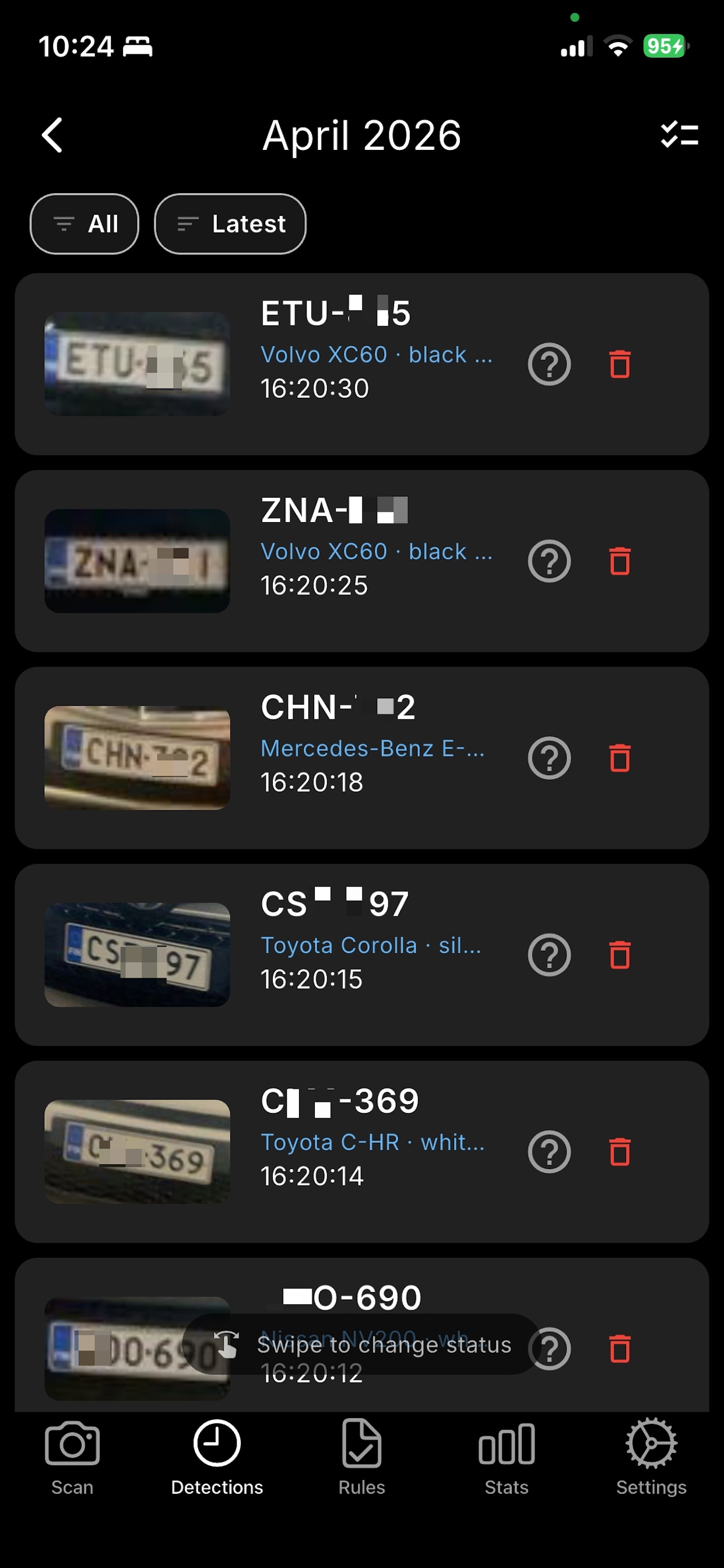
2. 🕐 Detections Page - Complete History

Three View Modes:

📋 List View

  • All captured plates chronologically
  • Grouped by: Today, Yesterday, This Week, etc.
  • Swipe left-to-right - Quick status change menu
  • Color badges: Green (whitelist), Red (blacklist), Orange (unknown)
  • Shows: Plate number, time, location, thumbnail

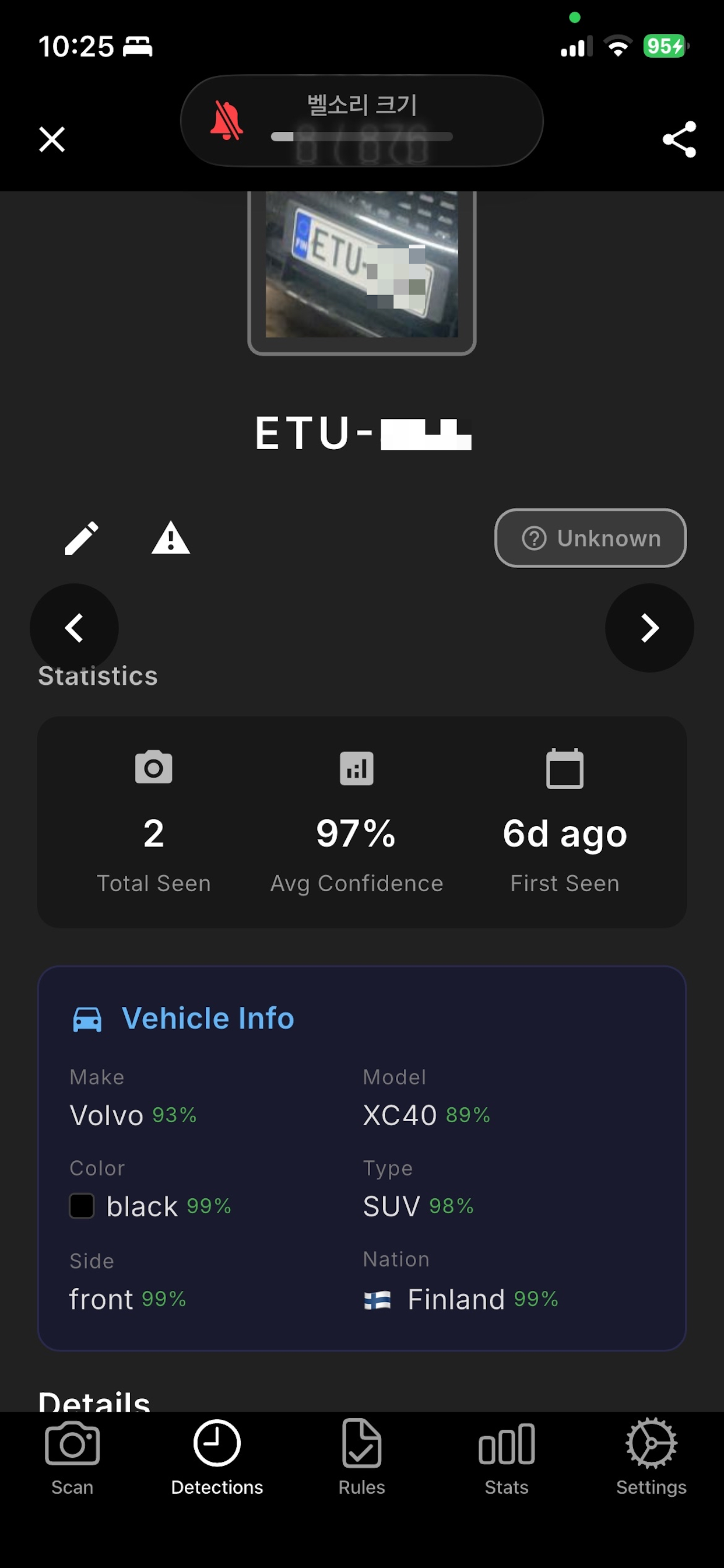
📸 Full Preview

  • Large plate image
  • Edit plate number (tap ✏️)
  • Detection + OCR confidence
  • GPS location & address
  • Quick actions: Copy, Delete, Add to Whitelist/Blacklist

🗺️ Map View

  • See all plates on interactive map
  • Smart clustering for nearby detections
  • Satellite/Road view toggle
  • Show all plate numbers as labels
  • Search by plate number
  • Tap markers for details

3. ✅ Rules Page - Whitelist & Blacklist

Smart Access Control:

  • Whitelist (Green) - Approved vehicles, success sound
  • Blacklist (Red) - Blocked vehicles, alert sound
  • Search in Real-time - Filter plates instantly
  • Partial matching: "ABC" finds "ABC-123"
  • Tab counters show totals
  • Swipe left to delete
  • + button to add new plates

Use Cases:

  • 🏢 Parking: Whitelist residents, blacklist violators
  • 🔐 Security: Whitelist staff, blacklist banned vehicles
  • 🚚 Delivery: Track known vehicles

4. 📊 Stats Page - Analytics & Insights

Overview Cards:

  • Total Scans (all-time)
  • Today's count
  • This Week / Month / Year

Top 10 Vehicles:

  • Most frequently detected plates
  • Tap to see all scans for that vehicle

Time Period Selector:

  • Today - Hourly breakdown
  • This Week - Monday to today
  • This Month - Current month
  • Year - Full year with year selector
  • Custom Range - Pick any dates

Status Filter:

  • View All, Whitelist only, Blacklist only, or Unknown

5. ⚙️ Settings Page - Fine-Tune Everything

Account:

  • Login with email + signature → Infinite scans!
  • Free trial: 100 scans/day (no login)
  • Shows expiry date

Notifications:

  • 🔊 Sound alerts (success/alert/unknown)
  • 📳 Vibration patterns (different for whitelist/blacklist)

Detection Settings:

  • Sync Thresholds - Link detection + OCR together
  • Detection Threshold (60-95%) - Minimum confidence
  • OCR Threshold (60-95%) - Text recognition confidence
  • Max Detections (1-10) - Plates per scan
  • Ignore Duplicates (0-60s) - Prevent repeated saves
  • Plate Region - Select specific region for accuracy

Storage:

  • Save images toggle
  • Clear history
  • Data retention: 7-365 days or Never

Location:

  • Enable GPS for map view
  • Shows address with detections

🎯 Real-World Use Cases

🏢 Parking Management

1. Add residents to Whitelist
2. Scan vehicles at entrance
3. Green = Allowed, Red = Blocked
4. Review violations in history
5. View statistics monthly

🔐 Security Checkpoint

1. Add approved vehicles to Whitelist
2. Add banned vehicles to Blacklist
3. Use Continuous Mode at gate
4. Audio/vibration alerts instantly
5. GPS tracking of all entries

🚗 Vehicle Tracking

1. Scan vehicles continuously
2. View complete history
3. Use Map to see locations
4. Export data for reports
5. Track Top 10 frequent visitors

🚚 Delivery Management

1. Track delivery vehicle arrivals
2. Time-stamped records
3. GPS location logging
4. Statistics for optimization
5. Whitelist known carriers

💡 Pro Tips for Best Results

✅ Best Practices:

  • Distance: 2-3 meters from vehicle
  • Angle: Perpendicular to plate (90 degrees)
  • Lighting: Good outdoor light (daytime best)
  • Focus: Tap plate area to focus before scanning
  • Stability: Hold steady while capturing

❌ Avoid:

  • Too far away (>5 meters)
  • Extreme angles
  • Low light conditions
  • Motion blur (moving vehicle)
  • Dirty or damaged plates

⚙️ Settings Recommendations:

Use Case Detection OCR Max Plates Region
High Accuracy
(Parking/Security)
90% 90% 1 Specific
High Recall
(Traffic Monitoring)
70% 70% 5 Universal
Balanced
(General Use)
80% 80% 2 Specific

🔄 Latest Update (v1.5.16)

What's New:

  • ✨ Year selector in Stats page
  • 📅 Custom date range picker
  • 🔍 Search in Rules page (real-time filtering)
  • 👆 Swipe navigation between modes
  • 🎨 UI improvements
  • 🐛 Bug fixes and performance enhancements

🆚 Free vs Paid License

Feature Free Trial Paid License
Daily Scans 100/day Unlimited ∞
All Features
5 Regions
Whitelist/Blacklist
History & Stats
Map View
Python SDK
Commercial Use
Support Community Priority

🌟 Why Choose MareArts ANPR Mobile App?

  • Professional Grade - Same AI as enterprise SDK
  • 100% Privacy - All processing on-device
  • Lightning Fast - Real-time recognition
  • Free Trial - 100 scans/day forever
  • Multi-Region - Works worldwide
  • Complete Solution - Whitelist, history, map, stats
  • One License - Mobile + SDK included
  • Regular Updates - New features monthly

📊 Technical Specs

  • Platform: iOS 14.0+ (Android coming soon)
  • AI Engine: On-device CoreML
  • Processing Time: ~0.1s per frame
  • Accuracy: 95%+ (optimal conditions)
  • Storage: ~200MB (with models)
  • Internet: Not required (offline capable)
  • Camera: All iOS cameras supported

🚀 Get Started in 3 Steps

# Step 1: Download from App Store
Search "marearts anpr" → Install

# Step 2: Open app and start scanning
Tap Scan → Point at license plate → Capture!

# Step 3 (Optional): Login for unlimited
Settings → Login → Enter email + signature → ∞ scans!

💼 Perfect For:

  • 🏢 Parking Lot Managers - Automate access control
  • 🔐 Security Guards - Quick vehicle verification
  • 🏠 Residential Communities - Resident/visitor tracking
  • 🏗️ Construction Sites - Authorized vehicle entry
  • 🏨 Hotels - Valet parking management
  • 🚚 Logistics - Delivery vehicle tracking
  • 👮 Law Enforcement - Field plate scanning
  • 🎓 Universities - Campus parking control

📞 Support & Resources

🎁 Special Offer

Buy one license, get everything:

  • ✅ Python SDK (desktop/server)
  • ✅ iOS Mobile App (unlimited scans)
  • ✅ Road Objects Detection
  • ✅ All future updates
  • ✅ Priority support

One payment, lifetime access!

💬 What Users Are Saying

"Perfect for our parking lot! 100 free scans/day is enough for testing, and the paid version is unlimited." - Parking Manager

"Finally, professional ANPR on mobile! On-device processing means no privacy concerns." - Security Director

"The whitelist/blacklist feature saves us so much time at our security gate." - Facility Manager

"Map view is genius! We can see exactly where each vehicle was spotted." - Operations Manager

🎯 Start Today!

  1. 📲 Download: Search "marearts anpr" on App Store
  2. 📷 Try Free: 100 scans/day, no credit card
  3. 🚀 Upgrade: Login for unlimited scans
  4. 💼 Deploy: Use in production with confidence

Professional license plate recognition is now in your pocket! 📱🚗


FREE ANPR/ALPR/LPR API - Try Before You Buy (1000 Requests/Day)


🎁 FREE License Plate Recognition API - No Credit Card Required!

Want to try ANPR (Automatic Number Plate Recognition) / ALPR (Automatic License Plate Recognition) / LPR (License Plate Recognition) without buying a license? We offer a completely FREE test API with 1000 requests per day!

✨ What You Get (FREE!)

  • 1000 requests/day - Perfect for testing and evaluation
  • No credit card required
  • No registration needed
  • 5 regions supported: Korea, Europe, USA/Canada, China, Universal
  • Multiple models to test (pico to large)
  • Works instantly - just install and run!

🚀 Quick Start (30 Seconds)

# Install
pip install marearts-anpr

# Test immediately (NO CONFIG NEEDED!)
ma-anpr test-api your-plate.jpg --region eup

# That's it! 🎉

🌍 Supported Regions

Region Code Coverage Example
kr South Korea 123가4567
eup Europe (EU standards) AB-123-CD
na USA, Canada, Mexico ABC-1234
cn China 京A·12345
univ Universal (all) Any format

💻 Usage Examples

Command Line (Easiest!)

# European plates
ma-anpr test-api eu-plate.jpg --region eup

# Korean plates
ma-anpr test-api kr-plate.jpg --region kr

# US plates
ma-anpr test-api us-plate.jpg --region na

# Chinese plates
ma-anpr test-api cn-plate.jpg --region cn

# Unknown region? Use universal
ma-anpr test-api unknown-plate.jpg --region univ

Python Script

#!/usr/bin/env python3
import subprocess

def test_free_anpr(image_path, region='eup'):
    """Test free ANPR API - no credentials needed!"""
    
    cmd = f'ma-anpr test-api "{image_path}" --region {region}'
    result = subprocess.run(cmd, shell=True, capture_output=True, text=True)
    
    if result.returncode == 0:
        print(result.stdout)
        return True
    else:
        print(f"Error: {result.stderr}")
        return False

# Test European plate
test_free_anpr("plate.jpg", "eup")

# Test Korean plate
test_free_anpr("plate2.jpg", "kr")

Test Multiple Regions

# Test same image with different regions
for region in eup kr na cn univ; do
    echo "Testing $region..."
    ma-anpr test-api plate.jpg --region $region
done

🎯 Advanced Options

Try Different Models

# List all available models
ma-anpr test-api --list-models

# Try different detector models
ma-anpr test-api plate.jpg --region eup --detector small_640p_fp32
ma-anpr test-api plate.jpg --region eup --detector medium_640p_fp32
ma-anpr test-api plate.jpg --region eup --detector large_640p_fp32

# Try different OCR models
ma-anpr test-api plate.jpg --region eup --ocr small_fp32
ma-anpr test-api plate.jpg --region eup --ocr medium_fp32
ma-anpr test-api plate.jpg --region eup --ocr large_fp32

Batch Testing

# Test all images in a folder
for img in ./plates/*.jpg; do
    echo "Processing $img..."
    ma-anpr test-api "$img" --region eup
done

📊 Sample Output

{
  "results": [
    {
      "ocr": "AB-123-CD",
      "ocr_conf": 98.5,
      "ltrb": [120, 230, 380, 290],
      "ltrb_conf": 95
    }
  ],
  "ltrb_proc_sec": 0.15,
  "ocr_proc_sec": 0.03,
  "status": "success"
}

🆓 FREE vs PAID Comparison

Feature FREE Test API Paid License
Requests/Day 1000 Unlimited
Speed ~0.5s (cloud) ~0.02s (local GPU)
Internet Required Yes No (offline OK)
Configuration None One-time setup
Regions All 5 All 5
Models All All
Price $0 Contact sales

🎓 Use Cases for Free API

  • Evaluation: Try before buying a license
  • Prototyping: Build POC applications
  • Testing: Test accuracy on your specific plates
  • Education: Learn ANPR/ALPR/LPR technology
  • Small Projects: Personal projects under 1000/day
  • Region Testing: Find which region works best
  • Model Comparison: Compare different model sizes

📈 When to Upgrade to Paid License?

Consider upgrading when you need:

  • 🚀 Unlimited requests (no daily limit)
  • 10-100x faster processing (local GPU)
  • 🔒 Offline operation (no internet needed)
  • 🏢 Commercial deployment
  • 📹 Real-time video processing
  • 🎯 High-volume applications (>1000/day)

💡 Pro Tips

# 1. Use specific regions for best accuracy
ma-anpr test-api plate.jpg --region eup  # ✅ Better
ma-anpr test-api plate.jpg --region univ # ⚠️ OK but less accurate

# 2. Test different models to find best speed/accuracy balance
ma-anpr test-api plate.jpg --region eup --detector small_640p_fp32   # Faster
ma-anpr test-api plate.jpg --region eup --detector large_640p_fp32   # More accurate

# 3. Check remaining quota
ma-anpr test-api --check-quota

# 4. Get help
ma-anpr test-api --help

# 5. See all options
ma-anpr test-api --list-models

🔍 Troubleshooting

Rate limit exceeded?

# Wait until midnight UTC (resets daily)
# OR upgrade to paid license for unlimited requests

No plates detected?

# Try different detector models
ma-anpr test-api plate.jpg --region eup --detector large_640p_fp32

# Try universal region
ma-anpr test-api plate.jpg --region univ

Wrong text recognized?

# Make sure you're using correct region!
ma-anpr test-api plate.jpg --region kr   # For Korean plates
ma-anpr test-api plate.jpg --region eup  # For European plates

# Try larger OCR model
ma-anpr test-api plate.jpg --region eup --ocr large_fp32

📖 Complete Example Script

#!/usr/bin/env python3
"""
Free ANPR Test Script
Test license plate recognition with different regions and models
"""
import subprocess
import json

def test_anpr_free(image_path, region='eup', detector='medium_640p_fp32', ocr='medium_fp32'):
    """Test free ANPR API"""
    
    cmd = [
        'ma-anpr', 'test-api', image_path,
        '--region', region,
        '--detector', detector,
        '--ocr', ocr
    ]
    
    result = subprocess.run(cmd, capture_output=True, text=True)
    
    if result.returncode == 0:
        try:
            data = json.loads(result.stdout)
            return data
        except:
            return result.stdout
    else:
        return {"error": result.stderr}

# Test European plate with different models
image = "eu-plate.jpg"

print("Testing different detector models...")
for detector in ['small_640p_fp32', 'medium_640p_fp32', 'large_640p_fp32']:
    result = test_anpr_free(image, 'eup', detector)
    print(f"{detector}: {result}")

print("\nTesting different regions...")
for region in ['eup', 'kr', 'na', 'univ']:
    result = test_anpr_free(image, region)
    print(f"{region}: {result}")

🎯 Real-World Example

# Parking lot monitoring (Europe)
ma-anpr test-api parking-cam.jpg --region eup

# Toll booth (USA)
ma-anpr test-api toll-booth.jpg --region na

# Security gate (Korea)
ma-anpr test-api security-cam.jpg --region kr

# Traffic enforcement (China)
ma-anpr test-api traffic.jpg --region cn

# Multi-national (airport parking)
ma-anpr test-api airport.jpg --region univ

🌟 Why Choose MareArts ANPR?

  • FREE tier available - Try before you buy!
  • State-of-the-art AI - Latest deep learning models
  • Multi-region support - Works worldwide
  • Fast processing - ~0.02s with GPU
  • Easy integration - Python, HTTP API, CLI
  • Regular updates - New models and features
  • Commercial ready - Production-grade quality

🚀 Get Started Now!

# Install (takes 10 seconds)
pip install marearts-anpr

# Test (takes 20 seconds)
ma-anpr test-api your-plate.jpg --region eup

# Celebrate! 🎉
# You just recognized your first license plate!

📞 Need More?

💬 What People Are Saying

"Finally, an ANPR API I can test without entering my credit card!" - Developer

"1000 requests/day is perfect for my small parking lot project." - Small Business Owner

"Tested all 5 regions before buying. Confident in my purchase!" - System Integrator

🎁 Summary

MareArts ANPR offers a completely FREE test API with 1000 requests per day. No credit card, no registration, no strings attached. Just install and start recognizing license plates!

  • ✅ Install: pip install marearts-anpr
  • ✅ Test: ma-anpr test-api plate.jpg --region eup
  • ✅ Evaluate: Try all regions and models
  • ✅ Upgrade: When ready for unlimited use

Start your ANPR/ALPR/LPR journey today - completely FREE! 🚗📸


MareArts ANPR V14 - Advanced Manual Processing & Performance Tuning


⚡ MareArts ANPR V14 - Advanced Manual Processing

Ready to take control? In this advanced guide, I'll show you how to manually process detections, measure performance, and optimize for your specific use case.

🎯 Why Manual Processing?

  • Full control over detection pipeline
  • Custom filtering and post-processing
  • Performance measurement and optimization
  • Integration with existing computer vision pipelines
  • Custom confidence thresholds per stage

🔧 Manual Detection & OCR Pipeline

from marearts_anpr import ma_anpr_detector_v14, ma_anpr_ocr_v14
import cv2
from PIL import Image
import time

# Initialize models
detector = ma_anpr_detector_v14(
    "medium_640p_fp32",
    user_name, serial_key, signature,
    backend="cpu",
    conf_thres=0.25,
    iou_thres=0.5
)

ocr = ma_anpr_ocr_v14("medium_fp32", "eup", user_name, serial_key, signature)

# Load image
img = cv2.imread("plate.jpg")

# Step 1: Detect license plates
start = time.time()
detections = detector.detector(img)
detection_time = time.time() - start

print(f"Detection time: {detection_time:.4f}s")
print(f"Found {len(detections)} plate(s)")

# Step 2: Process each detection
results = []
ocr_time = 0

for i, box_info in enumerate(detections):
    # Get bounding box
    bbox = box_info['bbox']  # [x1, y1, x2, y2]
    score = box_info['score']  # Detection confidence
    
    # Crop plate region
    x1, y1, x2, y2 = int(bbox[0]), int(bbox[1]), int(bbox[2]), int(bbox[3])
    crop = img[y1:y2, x1:x2]
    
    if crop.size == 0:
        continue
    
    # Convert to PIL for OCR
    pil_img = Image.fromarray(crop)
    if pil_img.mode != "RGB":
        pil_img = pil_img.convert("RGB")
    
    # Run OCR
    start = time.time()
    text, confidence = ocr.predict(pil_img)
    elapsed = time.time() - start
    ocr_time += elapsed
    
    print(f"Plate {i+1}: {text} ({confidence}%) - {elapsed:.4f}s")
    
    results.append({
        "ocr": text,
        "ocr_conf": confidence,
        "bbox": [x1, y1, x2, y2],
        "det_conf": int(score * 100)
    })

print(f"\nTotal time: {detection_time + ocr_time:.4f}s")

📊 Detection Object Structure

# detector.detector(img) returns list of dictionaries:
[
    {
        'bbox': [x1, y1, x2, y2],  # Bounding box coordinates
        'score': 0.95,              # Detection confidence (0-1)
        'class': 'license_plate'    # Object class
    },
    ...
]

# ocr.predict(pil_image) returns tuple:
("ABC1234", 98.5)  # (text, confidence_percentage)

🚀 Backend Performance Comparison

backends = ["cpu", "cuda"]  # Add "directml" on Windows

for backend_name in backends:
    try:
        print(f"\n🔧 Testing {backend_name}...")
        
        # Initialize with specific backend
        test_detector = ma_anpr_detector_v14(
            "medium_640p_fp32",
            user_name, serial_key, signature,
            backend=backend_name,
            conf_thres=0.25
        )
        
        # Measure performance
        start = time.time()
        detections = test_detector.detector(img)
        elapsed = time.time() - start
        
        print(f"Detected {len(detections)} plates in {elapsed:.4f}s")
        print(f"Speed: {1/elapsed:.1f} FPS")
        
    except Exception as e:
        print(f"⚠️ {backend_name} not available: {e}")

⚙️ Performance Results (Typical)

Backend Detection OCR Total FPS
CPU (i7) ~0.15s ~0.03s ~0.18s ~5.5
CUDA (RTX 3060) ~0.008s ~0.002s ~0.01s ~100

Result: GPU acceleration = 18x faster! 🚀

🎛️ Custom Filtering

# Filter detections by confidence
min_detection_conf = 0.50
min_ocr_conf = 80.0

filtered_results = []

for box_info in detections:
    if box_info['score'] < min_detection_conf:
        continue  # Skip low confidence detections
    
    # Process with OCR...
    text, conf = ocr.predict(plate_crop)
    
    if conf < min_ocr_conf:
        continue  # Skip low confidence OCR
    
    filtered_results.append({
        "text": text,
        "confidence": conf,
        "bbox": bbox
    })

print(f"After filtering: {len(filtered_results)} high-confidence plates")

🎨 Custom Visualization

import cv2

# Draw boxes and text on image
for result in results:
    x1, y1, x2, y2 = result['bbox']
    text = result['ocr']
    conf = result['ocr_conf']
    
    # Draw rectangle
    cv2.rectangle(img, (x1, y1), (x2, y2), (0, 255, 0), 2)
    
    # Draw text
    label = f"{text} ({conf}%)"
    cv2.putText(img, label, (x1, y1-10), 
                cv2.FONT_HERSHEY_SIMPLEX, 0.5, (0, 255, 0), 2)

cv2.imwrite("result.jpg", img)

📹 Video Processing Pipeline

import cv2

# Open video
cap = cv2.VideoCapture("traffic.mp4")

frame_count = 0
plate_history = {}

while cap.isOpened():
    ret, frame = cap.read()
    if not ret:
        break
    
    frame_count += 1
    
    # Process every N frames (skip frames for speed)
    if frame_count % 5 != 0:
        continue
    
    # Detect plates
    detections = detector.detector(frame)
    
    for det in detections:
        bbox = det['bbox']
        x1, y1, x2, y2 = int(bbox[0]), int(bbox[1]), int(bbox[2]), int(bbox[3])
        crop = frame[y1:y2, x1:x2]
        
        if crop.size == 0:
            continue
        
        # OCR
        pil_crop = Image.fromarray(cv2.cvtColor(crop, cv2.COLOR_BGR2RGB))
        text, conf = ocr.predict(pil_crop)
        
        # Track plates (simple tracking by position)
        plate_id = f"{x1//50}_{y1//50}"
        
        if plate_id not in plate_history:
            plate_history[plate_id] = []
        plate_history[plate_id].append(text)
        
        # Draw
        cv2.rectangle(frame, (x1, y1), (x2, y2), (0, 255, 0), 2)
        cv2.putText(frame, text, (x1, y1-10), 
                    cv2.FONT_HERSHEY_SIMPLEX, 0.5, (0, 255, 0), 2)
    
    cv2.imshow('ANPR', frame)
    if cv2.waitKey(1) & 0xFF == ord('q'):
        break

cap.release()
cv2.destroyAllWindows()

# Print detected plates
print("\nDetected plates:")
for plate_id, texts in plate_history.items():
    # Most common text for this plate
    most_common = max(set(texts), key=texts.count)
    print(f"  {most_common} (seen {len(texts)} times)")

💾 Batch Processing from Directory

import os
from pathlib import Path

image_dir = Path("./images")
results_all = {}

for img_path in image_dir.glob("*.jpg"):
    print(f"Processing {img_path.name}...")
    
    img = cv2.imread(str(img_path))
    detections = detector.detector(img)
    
    plates = []
    for det in detections:
        bbox = det['bbox']
        x1, y1, x2, y2 = int(bbox[0]), int(bbox[1]), int(bbox[2]), int(bbox[3])
        crop = img[y1:y2, x1:x2]
        
        if crop.size > 0:
            pil_crop = Image.fromarray(cv2.cvtColor(crop, cv2.COLOR_BGR2RGB))
            text, conf = ocr.predict(pil_crop)
            plates.append({"text": text, "conf": conf})
    
    results_all[img_path.name] = plates

# Save results
import json
with open("results.json", "w") as f:
    json.dump(results_all, f, indent=2)

print(f"\nProcessed {len(results_all)} images")

🎓 Advanced Tips

  • GPU Memory: Use cuda backend for 10-100x speedup
  • Confidence Tuning: Lower conf_thres to 0.15-0.20 for difficult images
  • IOU Threshold: Increase iou_thres to reduce duplicate detections
  • Batch Processing: Process multiple crops at once with ocr.predict([img1, img2, ...])
  • Frame Skipping: Process every Nth frame in videos for speed
  • Multi-threading: Run detector and OCR in separate threads

🔍 Troubleshooting

No detections?

  • Lower conf_thres to 0.15
  • Try larger model (large_640p_fp32)
  • Check image quality and resolution

Wrong OCR results?

  • Verify correct region (kr, eup, na, cn)
  • Try larger OCR model (large_fp32)
  • Check plate crop quality

Slow performance?

  • Use GPU backend (cuda or directml)
  • Use smaller models (small_640p_fp32, small_fp32)
  • Skip video frames
  • Batch process multiple images

💡 Conclusion

Manual processing gives you complete control over the ANPR pipeline. Use it for:

  • ✅ Custom filtering and validation
  • ✅ Performance optimization
  • ✅ Video stream processing
  • ✅ Integration with existing CV pipelines
  • ✅ Advanced visualization and tracking

Happy optimizing! ⚡🚗


MareArts ANPR V14 - Easy 3-Method Integration (File, OpenCV, PIL)


🚀 MareArts ANPR V14 - Getting Started in 3 Easy Ways

Welcome to MareArts ANPR V14! Today I'll show you how to process license plates using three different methods: from files, OpenCV, or PIL. Plus, the new multi-region switching feature that saves memory.

📦 Quick Setup

pip install marearts-anpr
ma-anpr config  # Enter your credentials

🎯 Basic Usage - Three Input Methods

from marearts_anpr import ma_anpr_detector_v14, ma_anpr_ocr_v14
from marearts_anpr import marearts_anpr_from_image_file, marearts_anpr_from_cv2, marearts_anpr_from_pil
import cv2
from PIL import Image

# Initialize detector and OCR (once)
detector = ma_anpr_detector_v14(
    "medium_640p_fp32",
    user_name, serial_key, signature,
    backend="cpu",
    conf_thres=0.25
)

ocr = ma_anpr_ocr_v14("medium_fp32", "eup", user_name, serial_key, signature)

# Method 1: From file (easiest!)
result = marearts_anpr_from_image_file(detector, ocr, "plate.jpg")
print(result)

# Method 2: From OpenCV
img = cv2.imread("plate.jpg")
result = marearts_anpr_from_cv2(detector, ocr, img)
print(result)

# Method 3: From PIL
pil_img = Image.open("plate.jpg")
result = marearts_anpr_from_pil(detector, ocr, pil_img)
print(result)

🌍 NEW: Dynamic Region Switching (Saves 180MB!)

Previously, you needed separate OCR instances for each region. Now use set_region():

# Initialize once with any region
ocr = ma_anpr_ocr_v14("medium_fp32", "eup", user_name, serial_key, signature)

# Switch regions instantly!
ocr.set_region('eup')   # European plates
result = marearts_anpr_from_image_file(detector, ocr, "eu-plate.jpg")

ocr.set_region('kr')    # Korean plates  
result = marearts_anpr_from_image_file(detector, ocr, "kr-plate.jpg")

ocr.set_region('na')    # North American plates
result = marearts_anpr_from_image_file(detector, ocr, "us-plate.jpg")

ocr.set_region('cn')    # Chinese plates
ocr.set_region('univ')  # Universal

Memory savings: Single instance vs multiple = ~180MB saved per additional region!

📊 Available Regions

  • kr - Korean plates (123가4567)
  • eup - European plates (EU standards)
  • na - North American plates (USA, Canada, Mexico)
  • cn - Chinese plates (京A·12345)
  • univ - Universal (all regions, slightly lower accuracy)

🎨 Batch Processing

# Detect plates from multiple images
img1 = cv2.imread("plate1.jpg")
img2 = cv2.imread("plate2.jpg")

detections1 = detector.detector(img1)
detections2 = detector.detector(img2)

# Collect plate crops
plates = []
for det in detections1:
    bbox = det['bbox']
    crop = img1[int(bbox[1]):int(bbox[3]), int(bbox[0]):int(bbox[2])]
    plates.append(Image.fromarray(cv2.cvtColor(crop, cv2.COLOR_BGR2RGB)))

for det in detections2:
    bbox = det['bbox']
    crop = img2[int(bbox[1]):int(bbox[3]), int(bbox[0]):int(bbox[2])]
    plates.append(Image.fromarray(cv2.cvtColor(crop, cv2.COLOR_BGR2RGB)))

# Process all plates at once!
results = ocr.predict(plates)  # Pass list of images

for i, (text, conf) in enumerate(results):
    print(f"Plate {i+1}: {text} ({conf}%)")

🔧 Model Options

Detector models:

  • pico_640p_fp32 - Smallest, fastest
  • micro_640p_fp32
  • small_640p_fp32
  • medium_640p_fp32 - Recommended balance
  • large_640p_fp32 - Most accurate

OCR models:

  • pico_fp32 - Fastest
  • micro_fp32
  • small_fp32
  • medium_fp32 - Recommended
  • large_fp32 - Best accuracy

Backends:

  • cpu - Works everywhere
  • cuda - NVIDIA GPU (10-100x faster!)
  • directml - Windows GPU

📝 Complete Example

from marearts_anpr import ma_anpr_detector_v14, ma_anpr_ocr_v14
from marearts_anpr import marearts_anpr_from_image_file
import os

# Load credentials
user_name = os.getenv('MAREARTS_ANPR_USERNAME')
serial_key = os.getenv('MAREARTS_ANPR_SERIAL_KEY')
signature = os.getenv('MAREARTS_ANPR_SIGNATURE')

# Initialize models
detector = ma_anpr_detector_v14(
    "medium_640p_fp32",
    user_name, serial_key, signature,
    backend="cpu",
    conf_thres=0.25,
    iou_thres=0.5
)

ocr = ma_anpr_ocr_v14("medium_fp32", "eup", user_name, serial_key, signature)

# Process European plate
print("Processing European plate...")
result = marearts_anpr_from_image_file(detector, ocr, "eu-plate.jpg")
print(result)

# Switch to Korean region
ocr.set_region('kr')
print("\nProcessing Korean plate...")
result = marearts_anpr_from_image_file(detector, ocr, "kr-plate.jpg")
print(result)

💡 Key Takeaways

  • ✅ Three input methods: file, OpenCV, PIL
  • ✅ Dynamic region switching saves memory
  • ✅ Batch processing for efficiency
  • ✅ Multiple model sizes for different needs
  • ✅ GPU acceleration available

🔗 Try It Free!

No license yet? Try the free API (1000 requests/day):

ma-anpr test-api your-plate.jpg --region eup

Happy coding! 🚗📸


Labels:

MareArts ANPR HTTP Server Integration - Load Once, Process Fast

🚀 MareArts ANPR HTTP Server - Easy Integration for Any Platform

One of the biggest challenges in ANPR (Automatic Number Plate Recognition) integration is the model loading time. Loading deep learning models can take 20+ seconds, which is impractical if you reload them for every image. Today, I'm sharing our solution: a lightweight HTTP server that loads models once and processes images from memory.

📊 The Problem: Model Loading Overhead

  • Model loading: ~22 seconds (one time)
  • Image processing: ~0.03 seconds per image
  • Traditional approach: Load models for EVERY image = slow!
  • Server approach: Load models ONCE, process thousands of images = fast!

✨ The Solution: Simple HTTP Server

Our simple_server.py creates a FastAPI server that:

  1. Loads ANPR models once at startup
  2. Accepts images through 3 different methods (file upload, raw bytes, base64)
  3. Processes images directly from memory (no disk I/O)
  4. Perfect for integration with C#, Visual Studio, or any HTTP client

🔧 Server Implementation

Here's the core server code:

#!/usr/bin/env python3
from fastapi import FastAPI, File, UploadFile, Request
from fastapi.responses import JSONResponse
from marearts_anpr import ma_anpr_detector_v14, ma_anpr_ocr_v14, marearts_anpr_from_cv2
import cv2
import numpy as np

# ============================================================================
# LOAD MODELS (Once at startup)
# ============================================================================

detector = ma_anpr_detector_v14(
    "medium_640p_fp32", USER, KEY, SIG,
    backend="cpu",  # or "cuda" for GPU
    conf_thres=0.20
)

ocr = ma_anpr_ocr_v14("small_fp32", "eup", USER, KEY, SIG, backend="cpu")

# ============================================================================
# CREATE SERVER
# ============================================================================

app = FastAPI(title="MareArts ANPR Server")

@app.post("/detect")
async def detect_plate_file(image: UploadFile = File(...)):
    """Method 1: Upload image file (multipart/form-data)"""
    image_bytes = await image.read()
    return process_image_bytes(image_bytes)

@app.post("/detect/binary")
async def detect_plate_binary(request: Request):
    """Method 2: Send raw image bytes"""
    image_bytes = await request.body()
    return process_image_bytes(image_bytes)

@app.post("/detect/base64")
async def detect_plate_base64(data: Base64Image):
    """Method 3: Send base64 encoded image"""
    image_bytes = base64.b64decode(data.image)
    return process_image_bytes(image_bytes)

def process_image_bytes(image_bytes):
    """Process image from bytes"""
    nparr = np.frombuffer(image_bytes, np.uint8)
    img = cv2.imdecode(nparr, cv2.IMREAD_COLOR)
    result = marearts_anpr_from_cv2(detector, ocr, img)
    return result

💻 Client Examples

Python Client (test_server.py)

import requests

def test_server(image_path, server_url="http://localhost:8000"):
    # Health check
    response = requests.get(f"{server_url}/health")
    print(response.json())
    
    # Detect plates
    with open(image_path, 'rb') as f:
        files = {'image': f}
        response = requests.post(f"{server_url}/detect", files=files)
    
    result = response.json()
    if result.get('results'):
        print(f"✅ Detected {len(result['results'])} plate(s):")
        for plate in result['results']:
            print(f"  • {plate['ocr']} ({plate['ocr_conf']}%)")

cURL Command Line

# Method 1: File upload
curl -X POST http://localhost:8000/detect -F "image=@plate.jpg"

# Method 2: Binary data
curl -X POST http://localhost:8000/detect/binary --data-binary "@plate.jpg"

# Health check
curl http://localhost:8000/health

C# / Visual Studio Integration

using System.Net.Http;

// Example 1: Send raw bytes
var client = new HttpClient();
var content = new ByteArrayContent(imageBytes);
content.Headers.ContentType = new MediaTypeHeaderValue("application/octet-stream");
var response = await client.PostAsync("http://localhost:8000/detect/binary", content);

// Example 2: Send base64 JSON
var base64Image = Convert.ToBase64String(imageBytes);
var json = JsonSerializer.Serialize(new { image = base64Image });
var content = new StringContent(json, Encoding.UTF8, "application/json");
var response = await client.PostAsync("http://localhost:8000/detect/base64", content);

🎯 Usage Guide

Step 1: Install dependencies

pip install marearts-anpr fastapi uvicorn python-multipart
ma-anpr config  # Configure your credentials

Step 2: Start the server (Terminal 1)

python simple_server.py
# Models load once (~22s), then server waits for requests

Step 3: Send images (Terminal 2 or your application)

python test_server.py your_image.jpg

🌟 Key Benefits

  • Load Once, Use Forever: Models load at startup, not per request
  • Memory Processing: No disk I/O, process images from RAM
  • Multiple Input Methods: File upload, raw bytes, or base64
  • Cross-Platform: Works with Python, C#, JavaScript, or any HTTP client
  • Production Ready: Built on FastAPI with async support
  • Easy Integration: RESTful API with JSON responses

📈 Performance Comparison

Approach First Image Subsequent Images
Traditional (load per image) ~22 seconds ~22 seconds each
HTTP Server (load once) ~22 seconds ~0.03 seconds each

Result: 700x faster for subsequent images! 🚀

🔗 Available Endpoints

  • POST /detect - Upload file (multipart/form-data)
  • POST /detect/binary - Send raw bytes (application/octet-stream)
  • POST /detect/base64 - Send base64 JSON
  • GET / - Server info
  • GET /health - Health check

🎓 When to Use This

  • ✅ Integrating ANPR into C# / Visual Studio projects
  • ✅ Building web applications with ANPR
  • ✅ Processing multiple images efficiently
  • ✅ Microservice architecture
  • ✅ Real-time video processing

📦 Complete Example Package

All code is available in our SDK:

  • simple_server.py - HTTP server (202 lines)
  • test_server.py - Python client test (52 lines)
  • README.md - Complete documentation

Install: pip install marearts-anpr

🔐 Configuration

The server uses environment variables for credentials:

# Configure once
ma-anpr config

# Credentials are stored in ~/.marearts/.marearts_env
# Server automatically loads from environment variables

💡 Conclusion

This HTTP server approach makes ANPR integration incredibly simple. Whether you're building a C# desktop application, a web service, or a microservice architecture, you can now integrate license plate recognition with just a few HTTP calls. No need to worry about Python integration complexity - just send HTTP requests!

The key insight: separate model loading from image processing. Load once, process thousands of times.

Happy coding! 🚗📸